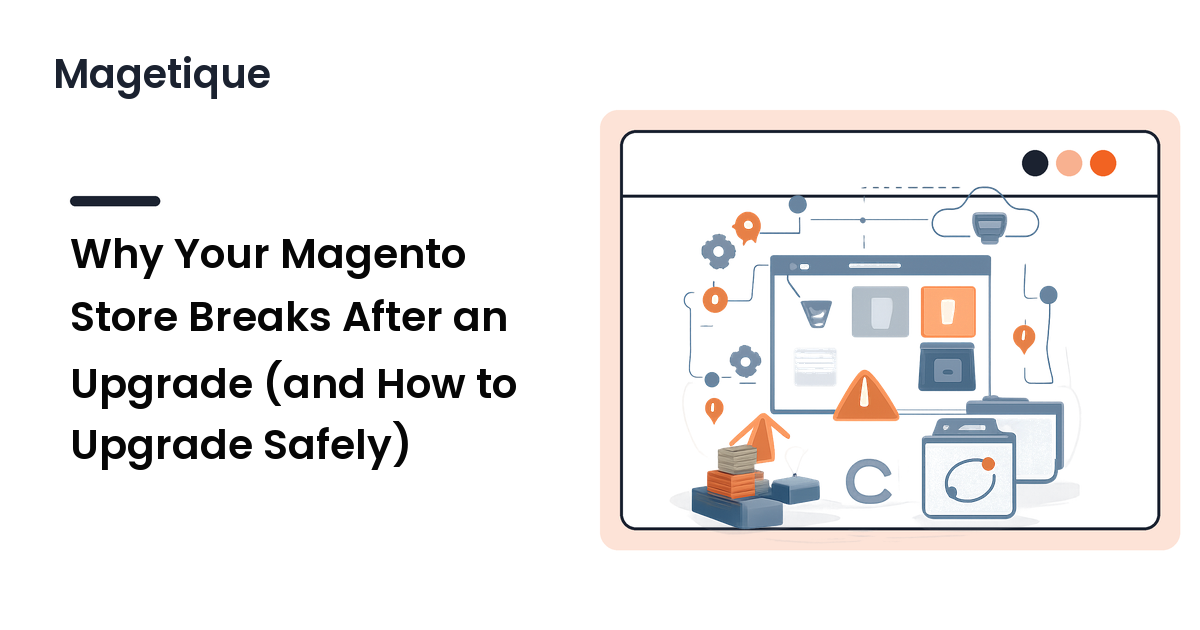
You run bin/magento setup:upgrade on your Magento 2 store, the command churns for ten minutes, and when it finishes the storefront throws a 500, the admin won't load, or checkout silently fails. The instinct is to blame Magento. It rarely deserves it.
The takeaway up front: a Magento upgrade that breaks your store is almost always caused by something you added on top of Magento — an incompatible extension, a customization that edited core behavior, or a deployment step done out of order. The release itself is tested; your specific combination of modules, themes, and overrides is not, and that is what an upgrade stresses. Accept that, and upgrading safely stops being luck and becomes a repeatable process: verify compatibility first, rehearse on a copy, keep a rollback ready.
Why upgrades break: it's your stack, not the platform
Upgrades fail for a small set of recurring reasons. Knowing them tells you what to check beforehand and where to look when something breaks.
Extension version constraints don't match
Every well-built extension declares the Magento versions it supports in its composer.json, and when you bump Magento, Composer must find module versions that all agree to coexist. If a module only supports the version you're leaving, the upgrade either refuses to resolve or — if forced — installs code that calls APIs the new Magento no longer provides, failing fatally the first time it runs, often in checkout or the admin.
Core overrides drift away from the code they replaced
The most damaging customizations copy and modify Magento's own behavior: a preference that swaps a core class, a plugin around a method whose signature changed, a theme template overriding a core .phtml that was rewritten upstream. Magento changes the original freely between versions; your override is frozen against the old one, so after the upgrade the two no longer fit. A store with heavy core overrides is far riskier than one that respects Magento's extension points.
Skipped or out-of-order deployment steps
Many "the upgrade broke everything" reports are really incomplete deployments. setup:upgrade updates the database schema and module registry, but the storefront also needs generated code rebuilt, static assets recompiled, and caches flushed. Skip setup:di:compile or setup:static-content:deploy in production mode and you get missing styles, broken JavaScript, or class-not-found errors — a half-finished deploy that looks like a platform bug.
PHP, database, or search-engine version mismatches
Each release targets specific PHP, MySQL/MariaDB, and search-engine (OpenSearch/Elasticsearch) versions. Upgrade Magento while the server still runs a PHP version the release dropped, and the app can fail for reasons unrelated to your code.
The common thread: none of these are random. Each is knowable before you upgrade — which is what makes a pre-upgrade audit worth the time.
Before you touch production: the pre-upgrade audit
Never let production be the first place an upgrade runs. The work that prevents downtime happens before the live store is touched.
- Read the target version's release notes. Record the new PHP, database, and search-engine requirements, and scan for backward-incompatible changes and deprecations.
- Inventory every extension and its supported versions. Check each third-party module against its current release for compatibility with the target. Any module without support for the new version is a blocker — update it, replace it, or hold the upgrade. See the extension vetting guide for how to read those
composer.jsonconstraints. - Catalogue your core overrides. Find your
preferenceentries and overridden core templates — your highest-risk customizations, since upstream may have changed exactly what you replaced. Flag them for re-testing. - Check the environment. Confirm PHP, MySQL/MariaDB, and OpenSearch/Elasticsearch are supported by the target release, and upgrade them first.
Surface an incompatible extension or unsupported PHP version here and you've caught on a spreadsheet what would otherwise be a production outage.
Upgrade on a copy first, then rehearse the deploy
Clone production to a staging environment that matches it closely — same Magento edition, same extensions, a recent copy of the real database. An upgrade that succeeds on an empty demo install proves little; one that succeeds on your data and modules proves almost everything.
Run the upgrade on staging with Composer driving the version change, then complete the full deploy sequence in production mode:
bin/magento maintenance:enable

# Update the Magento metapackage (and modules) to the target version
composer require magento/product-community-edition=<target-version> --no-update
composer update

# Apply schema/data changes, then rebuild generated code and assets
bin/magento setup:upgrade
bin/magento setup:di:compile
bin/magento setup:static-content:deploy -f
bin/magento cache:flush

# Bring it back online
bin/magento maintenance:disable
The order matters: schema and module changes first, then dependency-injection compilation, then static content, then a cache flush. Reorder those steps or skip di:compile in production mode and the deploy half-finishes.
Then test the flows that earn revenue, not just the homepage: add to cart, complete a guest and a logged-in checkout, run a search, and open the admin screens your team uses daily — paying special attention to whatever your flagged overrides and extensions touch. A green homepage with a broken checkout is still a failed upgrade.
Upgrading the live store without downtime
When staging passes, the production upgrade should be boring. Two principles keep it that way.
Back up what you can roll back to — first. Snapshot the database and copy the codebase (including composer.lock) before you change anything live. Your rollback plan isn't "undo the commands"; it's "restore this known-good state" — and without a backup there is none.
Minimize or eliminate the maintenance window. The simplest approach uses maintenance:enable and accepts a short window during a quiet hour — fine for many stores. To avoid customer-facing downtime entirely, upgrade on a separate release directory out of band, then switch the live document root to it in one atomic step and flush caches. Customers keep hitting the old release until the instant you cut over, and if the new one misbehaves you point the symlink back — the pattern behind zero-downtime Magento deploys. Either way, watch the logs and your key flows for the first hour, where late errors surface.
FAQ
Why does my Magento store show a blank page or 500 error after setup:upgrade?
Most often the deploy is incomplete or an extension is incompatible. Confirm you ran setup:di:compile and setup:static-content:deploy in production mode and flushed the cache — a missing compile or static deploy produces class-not-found and missing-asset errors that look like a crash. If those steps ran, check var/log/ and var/report/ for the failing class; it usually points to a third-party module or a stale core override.
Can I upgrade Magento without taking the store offline?
Yes, with a release-based deploy. Build the upgraded codebase in a separate directory and run the upgrade and compile steps there while the current release keeps serving customers, then switch the live document root to the new release in one atomic step and flush caches. A short maintenance window during low traffic is a simpler alternative that's acceptable for many stores.
How do I roll back a Magento upgrade that went wrong?
Restore the backup you took before upgrading — the database snapshot and the previous codebase including composer.lock — rather than reversing the commands. Schema and data changes from setup:upgrade aren't cleanly undone by hand, so restoring the known-good state is the reliable path. That's why the backup is step one, not an afterthought.
Do I have to upgrade extensions when I upgrade Magento?
Usually yes, for any extension that doesn't already support the target version. Leaving an incompatible module in place is the most common cause of a broken upgrade, because it calls APIs the new release may have changed or removed. Update each extension to a supporting version, replace it, or postpone the upgrade until it's compatible.
Is it safe to skip Magento versions and upgrade several at once?
It can be, but the risk rises because more breaking changes and deprecations stack up between your version and the target. The process is the same — audit, rehearse on staging, keep a rollback — but expect more to re-test, especially around core overrides and integrations. The larger the jump, the more a real-data rehearsal matters.
Next step
A Magento upgrade isn't dangerous because the platform is fragile — it's dangerous when the new version meets your stack of extensions, overrides, and environment for the first time live. Move that first meeting to a staging copy, complete the full deploy sequence, test the flows that make money, and keep a backup you can restore in minutes. Do that and upgrade day becomes a routine cutover, not an emergency. Explore Magetique to build a Magento storefront structured to upgrade cleanly, version after version.